Instructions to Download and Activate Snowpro Plus+
Subscription Software
From Our Web Site
Link to Gasman Home Page (http://www.gasman.com)
Link to Snowpro Plus+ Home Page (http://www.snowproplus.com)
Link to Support and Help Centre (https://gasman1.zendesk.com/hc)
You have purchased the Snowpro Plus+ software for download from our web site.
The software includes the online
User Manual in Adobe Acrobat PDF format and has an integrated online help system with detail information. You will
have received a Paypal Receipt for your order by email and a confirmation email with attached invoice with the
Snowpro Plus+ Serial#, Activation#, and Subscription Id.
The Following Describes How To Install The Snowpro Plus+ Software
Print this document to assist you in performing the download and
installation
Note: The software includes the online User Manual in Adobe
Acrobat PDF format, an integrated
online help system with
detail information and an automatic
update feature.
To access the User Manual: Install the software then select
Snowpro menu option Help, User Manual.
There are 2 different activation procedures (Click on Link).
Activate a Renewal Subscription (No Download Required)
Install and Activate a New Subscription (Download Required)
To Activate a Renewal Subscription
Note: Registering Your Software Requires Internet Access and Subscription Validation Requires Internet Access Every 15 Days
You do not need to download the software.
Normally you do not have to do anything once you have renewed your Annual Subscription.
If you were provided with a new Annual Subscription Id that is different from your previous
Subscription Id then you will need to enter it to complete the new subscription.
In most cases this will not be changed for renewals.
Once done then your software has been activated for another 12 months.
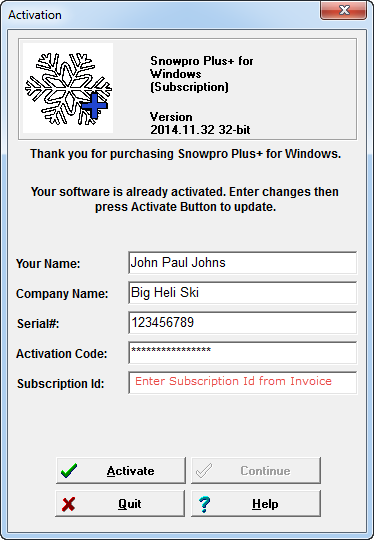
Steps to re-activate your Subscription Version
- Start up Snowpro Plus+ Software.
- Select Main Menu Option Help, Activate.
- Enter the new Subscription Id in the Subscription Id Field (5th field down).
- Click on the Activate Button.
- Exit Snowpro then restart.
- The software is ready to use.
To Install and Activate A New Subscription
Note: Activating Your Software Requires Internet Access and Subscription
If you have already installed a Trial Version then you must install the new Subscription as described following.
The following describes how to download and install the Snowpro Plus+ Software. Release notes
are available on
our Snowpro Help Centre (https://gasman1.zendesk.com/hc)
The
free Adobe Acrobat Reader (required to view the online User Manual) can be
retrieved from http://www.adobe.com/acrobat
To download the Snowpro Installatoin program will require the following information
which is contained your invoice which was emailed to you.
- Download User Id
- Download Password
- Serial Number
- Activation Code
- Subscription Id
Note: The Download password is only available during the subscription period.
If you are
having difficulties downloading the software then contact us for assistance
email support@gasman.com or phone +1-250-999-1490
(10:00 a.m. to 4:30 p.m. PST Monday-Friday)
You will require the serial number and activation code to obtain technical
support. Technical support is available
for the full subscription period and
allows up to 6 support calls per year.
Note: The first time the software is run
you will be prompted with a registration screen.
This allows you to enter
your name, company name, software serial number, activation number and Subscription Id.
Download and Install
Download Snowpro Install Program (http://www.gasman.com/download/sfwsub.exe))
(Note this is approximately 18 MB in size)
- Click on the download link above
- Enter the download User id (from invoice)
- Enter the download Password: (from invoice)
- Click the OK button
- When prompted select "Save this program to disk (This may be a different message on your web browser)
- Click OK button
- Save the installation file sfwsub.exe to a temporary folder on your computer such as your Desktop or C:\Temp
For example to save file to c:\temp the name would be c:\temp\sfwsub.exe (you
may have to create a temporary folder) - Once download has completed, start the installation by double-clicking on the
"sfwsub.exe" file
- Follow the directions. The setup program will install the software in the
default C:\Program Files\Gasman\Snowpro folder or a folder you specify.
In most cases you can accept the defaults.
Please read the software license information in the setup before completing the setup.
- The install program will create a program manager group named "Snowpro Plus+" or you can specify a different group.
The group will contain various start menu icons for executing the Snowpro program and accessing the Online User Manual,
and
Readme file will be on your Start/Program list.
You will be prompted for the registration
information the first time you run the Snowpro software (and until you enter the
Serial Number,
Activation Number, and Subscription Id)
Registering Your Software
Note: Registration and validation requires Internet access
The Snowpro software requires
a Serial Number, Activation Code, and Subscription Id the first time it is run.
This is the registration procedure and is only done once when the software is
installed.
The Subscription requires
that you are connected to the Internet at
least once every 15 days while Snowpro is started so that the subscription
can
be validated and as well to check for automatic updates.If you do not validate the software at least once every
15 days
then the software functionality is reduced to viewing existing profiles only.
You will not be able to create new ones.
To re-validate the software for full
functionality simply connected to the Internet and restart the Snowpro Plus+
software. The software licensing is designed to work on one computer only
per license. Each subscription gives you 2 licenses
which means you can run the
software on 2 different computers at the same time.
If you wish to
run this on more computers then you will be required to purchase an additional
subscription for each 2 computers.
Volume and educational discounts and company site
licensing are available.
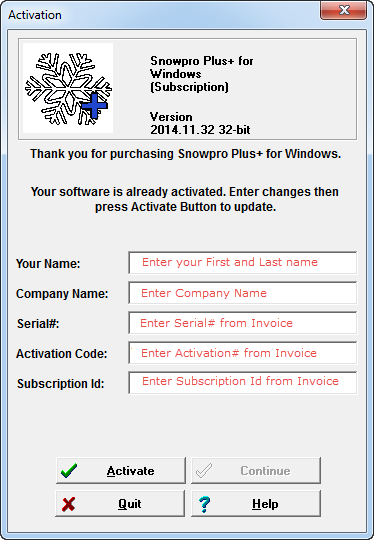
Enter the following on the Activation Screen
- Enter your Name.
- Enter your Company Name or Location.
- Enter the Serial# provided on your invoice.
- Enter the Activation# provided on your invoice
- Enter the Subscription Id provided on your invoice.
- Click on the Activate Button.
- Exit Snowpro then restart.
- The software is ready to use
PDF Print Driver Installation
Snowpro Plus+ prints very high quality snow profile graphs and these can be sent to a PDF document using a PDF Print Driver
such as that available
from PrimoPDF Web site (http://www.primopdf.com)
At the end of the installation you can check this option on the final install
screen and your web browser will be directed
to the PrimoPDF web site which allows you to download the free PDF print driver.
Adobe Acrobat Reader
The online User Manual is an Adobe Acrobat PDF format
file.
You will need to have Adobe Acrobat Reader 4.0 or higher to read the file.
If you do not already have this, you can fetch a free copy from
http://www.adobe.com/acrobat
Snowpro Support
We have a comprehensive Help Centre for providing support information. There
are also tips and help information as well as feature
information letting
you know
the different things Snowpro Plus+ is capable of doing.
Please feel free to contact us at
support@gasman.com or phone +1-250-999-1490 for help with any bugs or problems,
or
for suggestions to improve our software or websites.
Link to Snowpro/Gasman Help Centre
(https://gasman1.zendesk.com/hc)
Updated: 2014/11/28